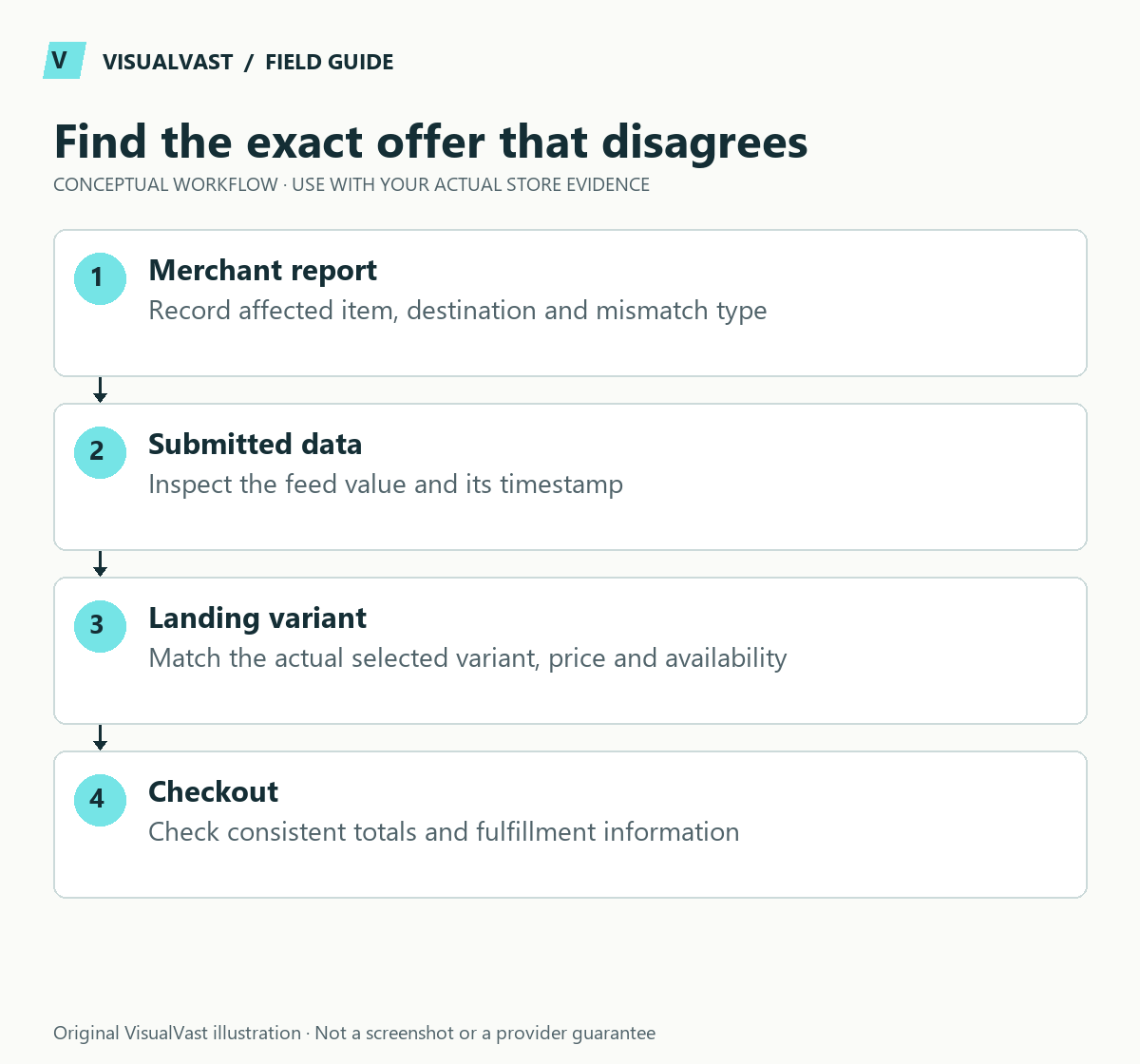
Check the exact product variant and destination URL named in the Merchant Center issue. Compare the submitted data, the visible landing-page choice, structured data and checkout under the same currency and customer context. Fix the underlying disagreement before requesting another review.
Google’s price inconsistency guidance requires consistency between submitted product information and the landing experience, including structured data. A feed refresh alone will not repair a page that displays a different variant or an outdated price.
Capture one mismatch completely
Record the item ID, affected country, currency, issue wording, submitted URL and observation time. Identify whether the item represents a parent or a sellable variation. Use a clean browser session to open the same URL and note what a new visitor actually sees.
Use this guide’s worksheet in the fillable workbook (PDF, page 30). Download and save a copy to retain your entries.
| Surface | Record |
|---|---|
| WooCommerce variation | Price, sale price, stock status and SKU |
| Submitted feed/item record | Item ID, price, currency, availability and link |
| Landing page | Selected option, visible price and purchase availability |
| Structured data | The offer corresponding to that item or variant |
| Cart/checkout | The same selected product’s price and eligibility |
Keep shipping charges separate from the product-price comparison. Likewise, distinguish a tax-display setting or customer-specific price from an unexplained mismatch. Use the applicable Merchant Center requirements for each target market, since display rules vary.
Diagnose the likely boundary
A wrong default variant can make the submitted item land on a different price. A stale cache can show an old sale. A feed schedule can lag behind a stock update. A pricing extension can produce one value for an anonymous visitor and another for a logged-in customer. These are hypotheses until the recorded evidence supports one.
Change one identified cause at a time. If an extension owns the feed, check its field mapping and update process. If a theme or SEO plugin produces structured data, avoid adding a second manual Product schema block that introduces a competing price. Ask the responsible implementer to inspect the generated output.
Validate the corrected item and its neighbors
After correction, reopen the submitted URL and repeat the same comparison. Check at least one other variation, a sale item and an unavailable product where relevant. A fix for the parent product can leave its children inconsistent.
Preserve the before/after observations and wait for the actual Merchant Center processing state before telling anyone the item is approved. Fix the source data first; automated item updates and a successful fetch depend on it. A rejected item can also have policy issues beyond price or availability.
Prevent the mismatch recurring
Assign ownership for prices, stock, feed publication and structured data. Include those checks in the SKU/source-of-truth plan and after changes to the store maintenance process. Clear product descriptions help buyers, but do not repair inconsistent structured values.
Use this audit before adding free listings to the 90-day traffic plan. SEO & Traffic Foundations can scope feed consistency, site structure and measurement. Visibility and approval remain subject to Google’s systems and policies. A corrected feed improves data quality; sales still depend on the offer and demand.
SEO & Traffic Foundations
Map search demand to pages that sell
Keyword-to-page mapping, up to ten optimized priority URLs, technical essentials, internal links, measurement setup and a 90-day content plan. From $900 USD.