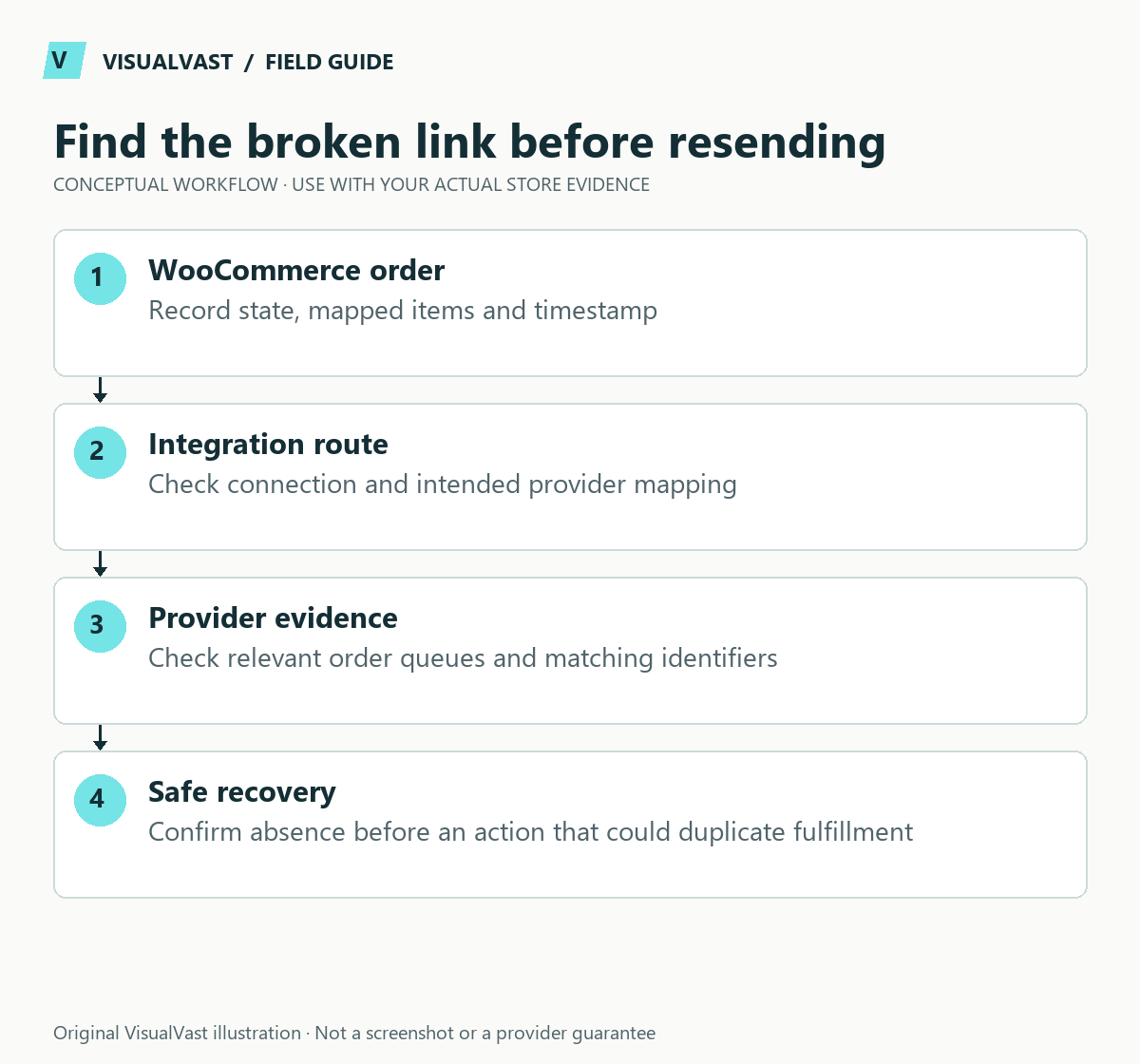
First confirm whether the order is absent, unlinked, awaiting approval or already in production. Those are different states. Do not submit another order until you have checked for an existing provider record; a retry can turn a support issue into duplicate manufacturing.
Record the WooCommerce order number, timestamp and time zone, selected products and provider account. Keep customer details private. These steps cover the WooCommerce-to-Printify route only.
Check the expected import conditions
Printify’s missing-order documentation identifies WooCommerce’s Processing state for imports, notes that some channel syncs can take up to 24 hours, and explains the Other Orders area and webhook troubleshooting. Treat the documented window as diagnostic context, and act sooner when a customer deadline is urgent.
Use this guide’s worksheet in the fillable workbook (PDF, page 26). Download and save a copy to retain your entries.
Download: Support evidence packet (CSV)
| Check | Evidence | Avoid |
|---|---|---|
| Correct store/account | Connected shop name and order reference | Searching a different Printify shop |
| Woo payment and status | Gateway confirmation and order notes | Marking unpaid orders paid to force import |
| Existing provider order | All relevant order views, including Other Orders | Creating a duplicate before searching |
| Product mapping | Selected variation and unchanged identifiers | Renaming SKUs while troubleshooting |
| Connection event | Relevant webhook and delivery evidence | Guessing a callback URL or shop ID |
| Timing and recent changes | Last successful order and update timeline | Reconnecting several systems at once |
Distinguish an unlinked product from a missing order
An order can exist while its product mapping needs attention. Compare the purchased variant with the product originally published from Printify. Match on identifiers, because titles can be changed or duplicated. Preserve the provider’s product/variant identifiers and the store’s SKU relationships.
Review the SKU architecture guide if identifiers were edited. Manual mapping or importing can have operational consequences, so check approval settings and the existing production state before confirming it.
Inspect the WooCommerce event route
The provider documentation identifies an action webhook using woocommerce_order_status_processing. Check the current WooCommerce webhook list and recent changes. If a webhook is missing or its delivery fails, use Printify’s exact account-specific instructions or support assistance. Do not invent the shop identifier, share webhook secrets publicly or disable all security controls as a quick fix.
Compare the time of the order with firewall, hosting and integration errors. A blocked request, an absent webhook and an incorrect product link require different fixes. Assemble a support packet if you cannot identify the failing boundary.
Separate import from production approval
Printify explains its order process: approval settings and payment affect production. An imported order that is awaiting approval or funding is not necessarily a synchronization failure. Check the POD cash-flow guide if the provider charge cannot be covered before payout.
After resolving the cause, verify one controlled order through the intended path and document its provider ID. Re-run the relevant POD launch checks. For recurring failures, scope help through Multichannel & POD implementation or Care & Maintenance.
Multichannel & POD
Connect your POD provider and test the failure paths
We map up to ten products to one supported provider on your existing WooCommerce store, then test orders, variations and failed steps before you go live. From $750 USD.