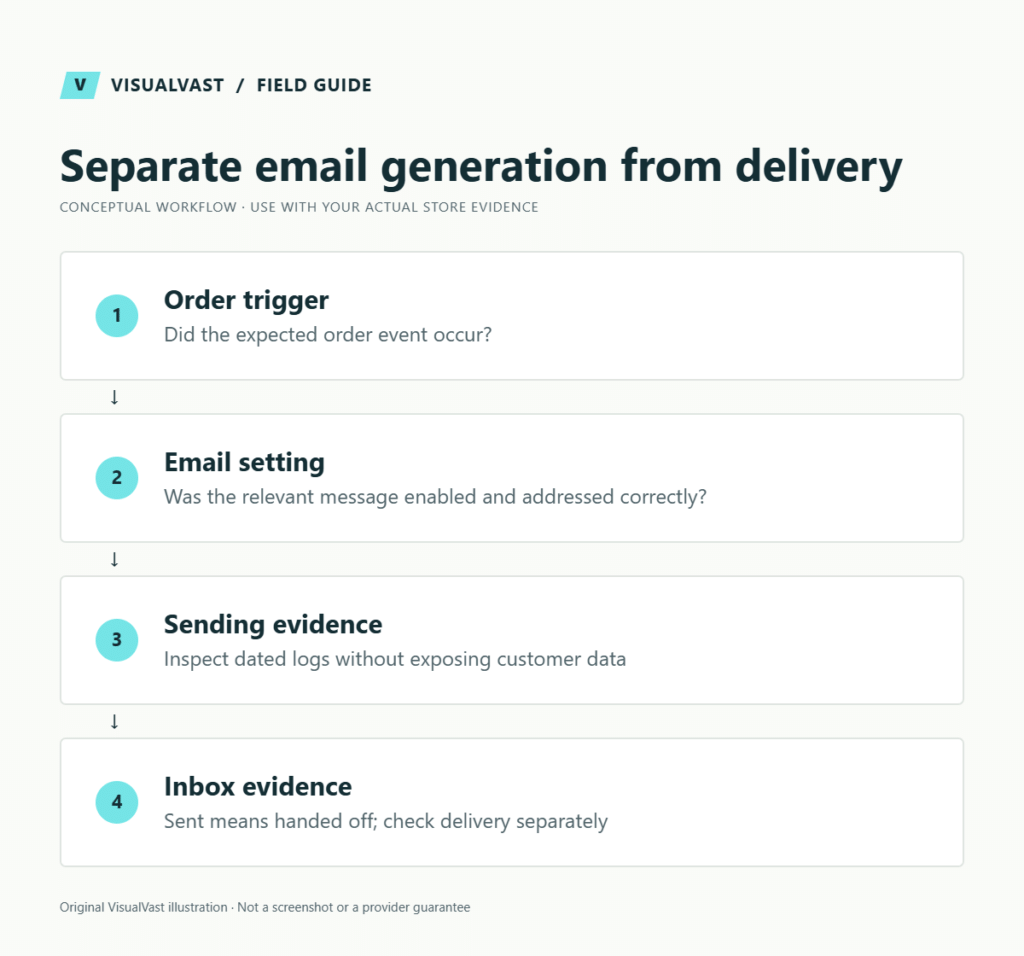
When a WooCommerce order email does not arrive, identify where the chain failed: the order event, email generation, mail transport or inbox delivery. Repeatedly placing orders rarely tells you which layer is responsible and can create duplicate operational work.
Read the built-in transactional email log first
Current WooCommerce provides a transactional-emails log under WooCommerce > Status > Logs. The official troubleshooting guide describes the outcomes below. On older installations without this feature, use the configured mail-provider logs and version-appropriate diagnostics.
Use this guide’s worksheet in the fillable workbook (PDF, page 17). Download and save a copy to retain your entries.
Download: Support evidence packet (CSV)
| Outcome | Meaning | Next check |
|---|---|---|
| Sent | Handed to the site’s mail system | Provider acceptance, bounce and inbox placement |
| Failed | The sending process returned an error | Timestamped error and mail-provider configuration |
| Disabled | The email type was switched off | Whether that choice was intentional |
| Skipped | A required condition was missing | Recipient or triggering conditions |
| No expected record | The attempt may not have occurred or logging may hide it | Version, logging level, trigger and fatal errors |
A sent record confirms handoff to the mail system only. Do not replace SMTP or alter domain authentication before locating the failing stage. WooCommerce’s logging release explanation also notes that a failure reason can rarely be attributed to a nearby unrelated mail failure; compare the full timeline.
Keep redacted screenshots of representative outcomes and the associated order event. For digital customers, distinguish email failure from download permission failure. If escalation is necessary, use the support packet checklist and involve the Care & Maintenance service within an agreed scope.
WooCommerce normally uses WordPress’s mail function, and a message reported as sent may still fail to reach the recipient. The official email troubleshooting guide distinguishes store email generation from wider delivery problems. Use that distinction to structure the investigation.
Start with the expected event
Record which email should have been sent and why. Check the order status, recipient address and whether that email type is enabled. A message associated with a later order state will not necessarily appear when you create a pending order.
Write down the timestamp and a safe internal order reference. Compare one controlled test with a known expected result.
Trace the four stages
| Stage | Question | Useful evidence |
|---|---|---|
| Trigger | Did the intended order event occur? | Order status and notes |
| Generation | Was the relevant email enabled and produced? | Store configuration and limited diagnostic record |
| Transport | Did the sending process accept or reject it? | Provider or mail log status |
| Receipt | Did the destination accept, filter or reject it? | Inbox, spam folder or provider delivery event |
Logs should contain only what is necessary for diagnosis and should not be exposed publicly. Order emails can include personal information. Redact customer details and tokens before sharing an error with a third party.
Check sender authentication with the domain owner
Use a sender address the business controls and review the sending provider’s current requirements. WooCommerce’s email authentication guide discusses SPF, DKIM and DMARC. Those records belong to the domain’s wider mail configuration, so coordinate changes with whoever manages it.
Do not paste a generic DNS record over an existing record without understanding other legitimate senders. A fix for store emails can disrupt ordinary business email if the change is made without that context. Keep credentials private and grant only the access needed for the chosen setup.
Isolate a configuration change safely
If emails stopped after an update or new integration, reproduce the issue in staging where practical. Note the last known working state. Review the relevant error and test one hypothesis at a time. Avoid disabling broad security controls or replacing multiple plugins simultaneously just to see whether the symptom disappears.
A staging environment may intentionally suppress messages. In that case, a successful suppressed test proves the suppression behavior only. Record the limit and test real delivery separately through an approved test recipient and configuration.
Keep the customer supported while diagnosing
Provide an account or support route for legitimate order information. For digital products, verify entitlement before changing access. Do not ask for passwords, full payment details or screenshots containing unnecessary personal information.
Before resending a message, consider whether it contains outdated order information or whether an external system will act on the same event. Document the action so another team member does not repeat it. If the underlying payment or order status is uncertain, resolve that first.
Start from a template. The Store Content and Customer Experience Bundle includes editable listing templates, download instructions and support replies, plus seven worked examples. $19 USD.
Common questions
Does “sent” mean the buyer received it?
No. It may only mean a sending layer accepted the message. Follow the provider’s delivery evidence and check the receiving side where possible.
Should I install an SMTP plugin immediately?
First identify the current sending route and failure. A properly configured provider can be useful, but adding another mail layer without understanding the existing one may create conflicting settings.
Can a form test verify all store emails?
No. Different forms or services may use different sending paths and triggers. Include the specific order notifications in your checkout test plan.
Make mail ownership, renewal and troubleshooting part of the store handover checklist. Reliable customer communication needs an operating owner after launch.
Continue with the next relevant check
- WooCommerce Checkout Test Plan: What to Verify Before Launch
- WooCommerce Maintenance and Handover Checklist for Store Owners
- WooCommerce Download Link Not Working? A Diagnosis Tree
- What to Collect Before Contacting WooCommerce or Plugin Support
Care & Maintenance
Hand off the upkeep, keep the checks
WooCommerce Care covers scheduled updates, backups, monitoring and a monthly checkout test, with a written report. Care starts at $199 USD a month. Care Plus adds two hours of fixes and support each month.