Clipchamp, CapCut, Canva and Adobe Express all export video without a watermark on their free plans, as long as every template, effect and stock asset in the project is free. All four run in a web browser, so each one works on a Chromebook. On a Windows, Mac or Linux computer, DaVinci Resolve and Shotcut add full desktop editing with clean exports.
Free plans change often. We checked each publisher’s own pages on November 2, 2026. Run a ten-second test export before you commit to a full project.
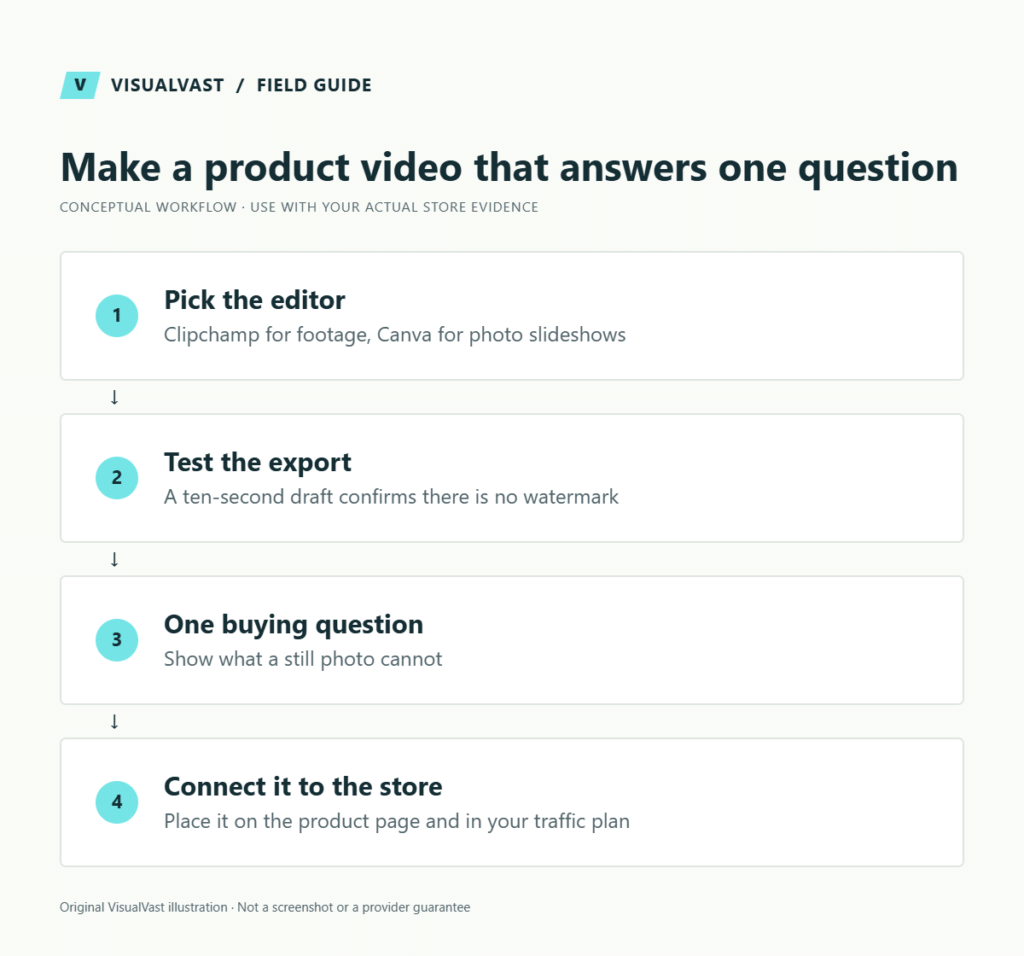
Free video editors that export without a watermark
Each editor below has a free plan that produces a clean file. The last column shows what triggers a watermark on that plan.
| Editor | Runs on | Free export | What adds a watermark |
|---|---|---|---|
| Clipchamp | Browser, including Chromebook; Windows app | Up to 1080p | Premium features or premium stock |
| CapCut | Browser, including Chromebook; Android, iOS, Windows, Mac | Up to 1080p | Pro templates, effects and AI tools |
| Canva | Browser, including Chromebook; mobile and desktop apps | Up to 1080p | Pro templates, elements, footage or music |
| Adobe Express | Browser, including Chromebook; mobile apps | Videos up to 30 minutes; 4K needs Premium | Premium templates and stock |
| DaVinci Resolve | Windows, Mac, Linux | Up to 4K UHD | Studio-only effects |
| Shotcut, OpenShot, Kdenlive | Windows, Mac, Linux; Chromebook through Linux | No paid tier | Nothing; all three are free and open source |
Clipchamp
Microsoft’s browser editor suits trimming product footage, adding text, recording your screen and adding a voiceover. Free exports reach 1080p, and a watermark appears only when a project uses premium features or stock. Microsoft lists Chromebooks among its supported devices. See Clipchamp’s plan information.
CapCut
CapCut’s web editor gives you a multi-track timeline in the browser, and CapCut also installs from Google Play on a Chromebook. Standard edits export at 1080p with no watermark. CapCut’s help page on Pro exports explains that a project using Pro materials needs a subscription to export clean, so check for Pro labels before you build a video around a template.
Canva
Canva fits photo-led product introductions, slideshows built from mockups and branded text slides. A free export is clean when every element is free. One Pro template, clip or music track adds a watermark until you upgrade or license that item, and templates often mix free and Pro elements. See Canva’s video editor.
Adobe Express
Adobe Express offers template-driven video for social posts and short promos. Its pricing page lists videos up to 30 minutes on the free plan and reserves 4K export for Premium. Premium templates and stock add a watermark on free accounts.
DaVinci Resolve
Blackmagic Design’s free version of DaVinci Resolve is a full desktop editor with color grading and audio tools. It exports up to 4K UHD without a watermark, and a watermark appears only when you apply a Studio-only effect. It needs a capable Windows, Mac or Linux computer and has no ChromeOS version.
Shotcut, OpenShot and Kdenlive
These open-source editors have no paid tier and add no watermark. Shotcut handles a wide range of formats, OpenShot is the gentlest for beginners, and Kdenlive has the deepest feature set. All three run on Windows, Mac and Linux, and you can install them on many Chromebooks through Linux.
These recommendations draw on each publisher’s documentation. We did not benchmark every editor.
Editors that watermark free exports
Several popular apps add a logo to every free export. KineMaster stamps “Made with KineMaster” on free videos. VEED and WeVideo watermark free exports and cap resolution at 720p or lower. InShot watermarks free exports and lets you remove the mark on a single export by watching an ad. PowerDirector’s free mobile version also adds a watermark. These apps make sense once you are ready to pay for a subscription.
Video editing on a Chromebook
A Chromebook gives you three routes, from easiest to most demanding.
- Browser editors. Clipchamp, CapCut, Canva and Adobe Express run in Chrome on every Chromebook with no installation. Start here for product clips and social shorts.
- Android apps from Google Play. CapCut installs as an app. LumaFusion offers multi-track touch editing on ChromeOS as a one-time purchase, listed at $29.99 at launch. Check the current Play Store price.
- Linux apps. Turn on the Linux development environment under Settings, Advanced, Developers. Then install Shotcut, OpenShot or Kdenlive from Flathub or as an AppImage. Expect slower previews on lower-powered models, and test a short clip first.
DaVinci Resolve has no ChromeOS build, and its Linux version targets workstations with a dedicated graphics card. On a Chromebook, use a browser editor or edit Resolve projects on another computer.
Start with three short clips: the complete product, a close-up and a demonstration. Keep the original files in a clearly named folder. Close extra browser tabs, make a short edit and export it. Watch the exported file from beginning to end before you invest time in a longer version. If editing feels sluggish, shorten the project and remove effects before you change tools.
Choose an editor by the video you need
| Video | Start with | Why |
|---|---|---|
| Product demo from phone footage | Clipchamp or CapCut | Trim clips, add captions and export 1080p in the browser |
| Photo slideshow from product shots or POD mockups | Canva or Adobe Express | Templates turn still images into motion quickly |
| Digital product walkthrough | Clipchamp | Records your screen and webcam inside the same editor |
| Vertical social clip | CapCut | Built around Reels, TikTok and Shorts formats |
| Longer tutorial or brand video | DaVinci Resolve or Shotcut | Full timeline control on a desktop computer |
How to avoid an unexpected watermark or upgrade
Create a ten-second test with the same template, music and effects you plan to use in the full video. Download the export and check the file itself for a watermark. Look for premium labels on individual assets. A free account covers the free assets and features only. Reusing another creator’s work requires their permission, watermark or not.
Keep a record of the source and license for music, stock footage and graphics. Check that each license covers business use and the platforms where you will post. When in doubt, use your own footage and an on-screen text explanation without music.
Plan a product video around one buying question
A useful product video answers something a customer cannot judge from a still image. For a physical product, show its scale, texture or operation. For print-on-demand apparel, show a real sample and its print placement. For a digital product, demonstrate a task using example data and show what the buyer receives. Label a mockup as a mockup.
Use this sequence: show the product, demonstrate one useful detail, clarify what is included and offer a relevant next step. A printable planner video can show the file opening, one completed example and the available formats, and make clear that the purchase is a digital download and that nothing ships. Our digital product page checklist lists the details buyers need.
Make one clear version before adapting it
Write a short outline before opening the editor. Remove pauses, keep text readable on a phone and add accurate captions where spoken words carry important information. Keep a clean master copy, then adapt the crop and text placement for each destination. Check each destination’s current upload requirements, since platforms differ in size and format.
Watch once with sound and once without. Check that a viewer can tell what the product is, what they receive and where to go next. Leave out claims about results. A product demonstration should make the buying decision clearer.
Connect the video to your owned store
Use the video alongside clear product photos and a written description, so customers can find essential information without watching. Test the page on a phone and keep video loading from interrupting browsing. Where a social platform permits a product or profile link, send visitors to the relevant product or guide.
Match the demonstration with your product description, then fit distribution into a 90-day traffic plan. If visitors arrive but do not buy, use the traffic and conversion diagnosis tool to separate an acquisition problem from a buying-experience problem.
Frequently asked questions
Which free video editor has no watermark?
Clipchamp, CapCut, Canva and Adobe Express export without a watermark on their free plans when every asset in the project is free. DaVinci Resolve, Shotcut, OpenShot and Kdenlive export without a watermark on Windows, Mac and Linux.
What is the best free video editor for a Chromebook?
Start with Clipchamp or CapCut’s web editor. Both run in Chrome, export at 1080p for free and handle trimming, text and captions. Choose Canva for photo slideshows.
Can I run DaVinci Resolve on a Chromebook?
No. Blackmagic Design publishes Resolve for Windows, Mac and Linux, and the Chromebook Linux environment lacks the graphics support it requires. Shotcut or Kdenlive through Linux gives capable Chromebooks a desktop-style editor.
Can I use these videos to sell products?
Two licenses apply: the editor’s terms and each asset’s license. Check commercial-use terms for templates, music and stock footage. Your own footage carries the fewest restrictions.
Do I need a paid editor to launch a store?
Most stores can launch with a free editor. Pay when a specific limitation stops you from producing the video you need, such as 4K export or a premium template you depend on.
SEO & Traffic Foundations
Map search demand to pages that sell
Keyword-to-page mapping, up to ten optimized priority URLs, technical essentials, internal links, measurement setup and a 90-day content plan. From $900 USD.